Azure Key Vault Credentials
| Included in Version | Release Date |
|---|---|
| V3.63.0 | February 2026 Monthly Release |
To further enhance credential management in Cloudhouse Guardian (Guardian), you can now integrate your Guardian instance with Azure Key Vault to securely retrieve secrets from your organization's existing Azure account and use them as the authentication method when adding a Linux or Network device node. This feature helps centralize credential storage, improve security, and reduce the need to manually manage credentials across multiple nodes. For more information on the new Azure Key Vault integration feature, see Azure Key Vault Integration.
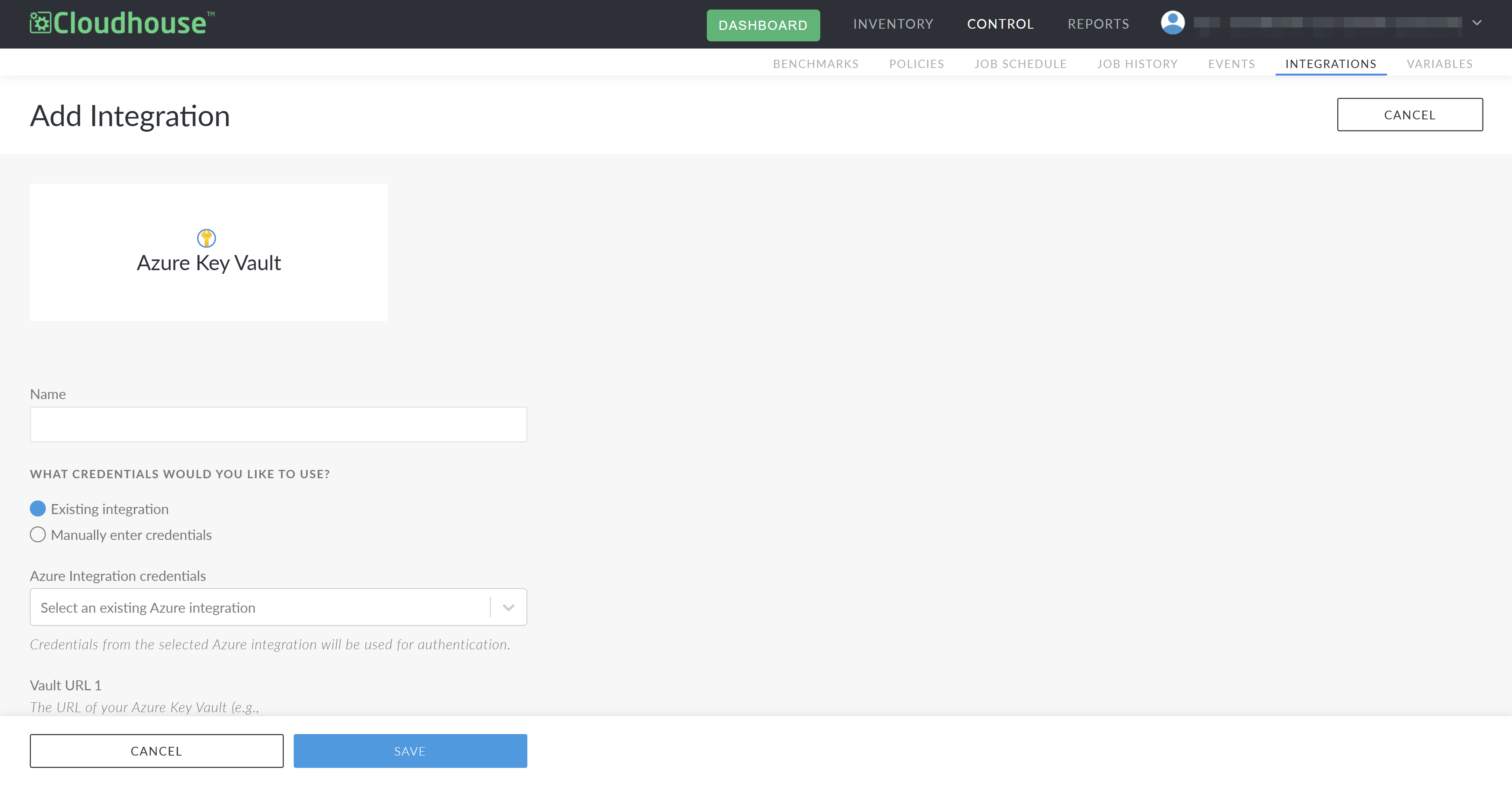
Use Azure Key Vault Credentials
To use Azure Key Vault credentials as the authentication method Guardian uses to access nodes, the following dependencies must be met:
- Azure account – Configured with Azure Key Vault credentials.
- Azure Key Vault integration – Set up in Guardian, with the folder path(s) to your existing credentials defined.
Once you add an Azure Key Vault integration, you will see the new Azure Key Vault radio button under the Password credential type when adding a Windows Node, Linux Node or Network Device Node. For more information on how to use an Azure Key Vault credential when adding a node, see the sections below.
Note: The following image shows where the Azure Key Vault option appears when adding a Linux node.
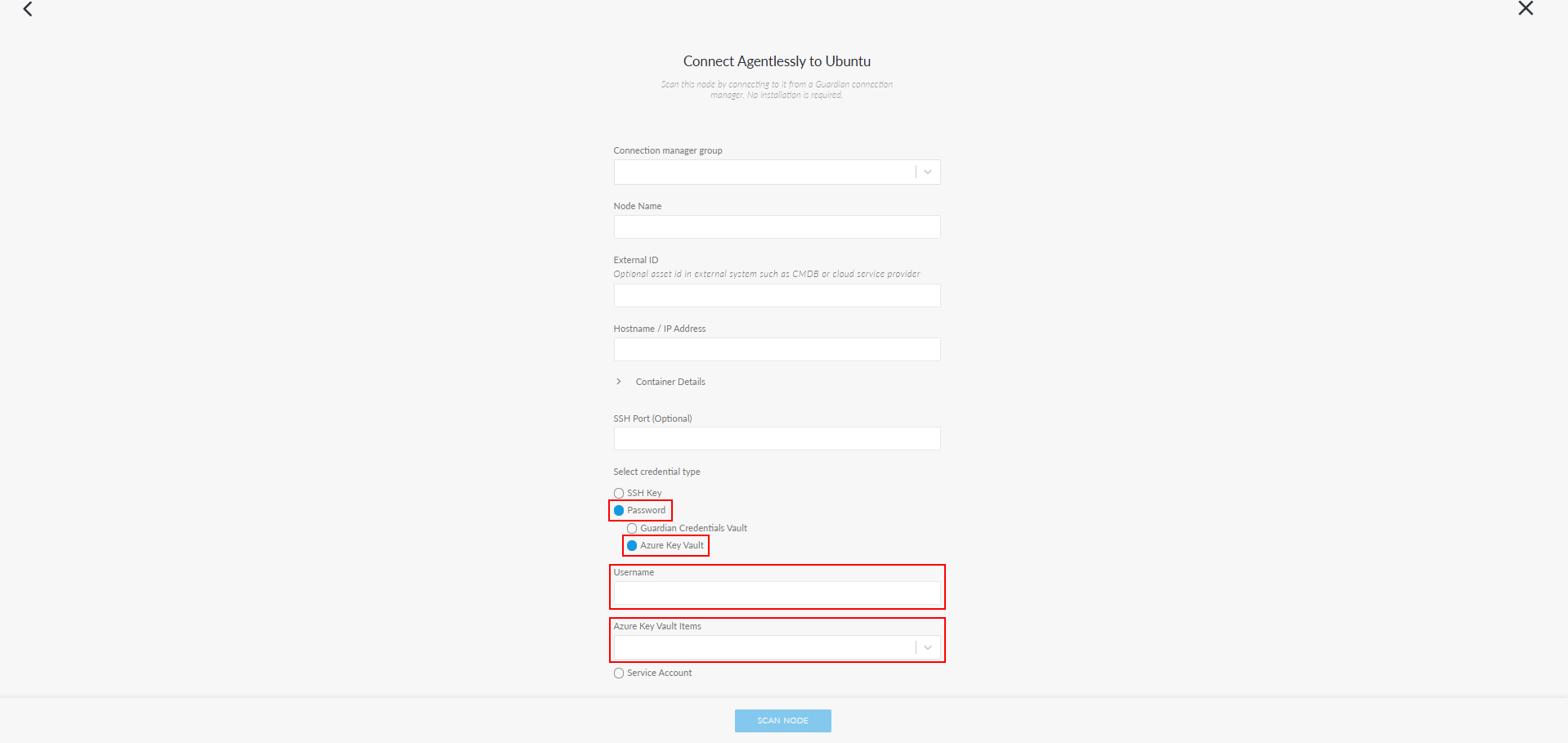
Tip: Additionally, if the Credentials feature is enabled, the Guardian Credentials Vault radio button is available for selection. For more information, see Credential Vault.
Linux or Network Device Node
Use your organization's Azure Key Vault secrets to allow Guardian to authenticate access to Linux or network device nodes without manually adding passwords,
To add a Linux or network device node using Azure Key Vault credentials, complete the following steps:
-
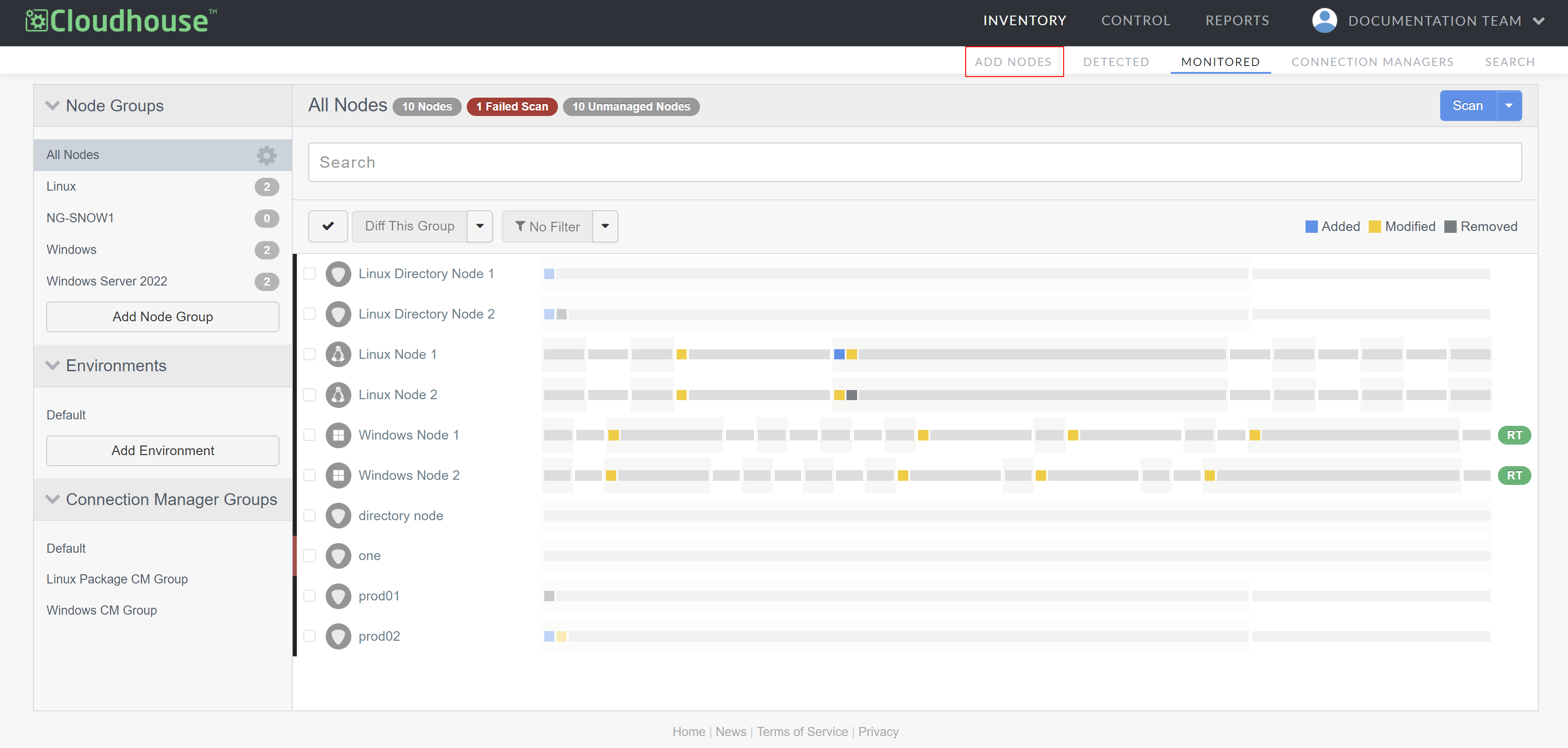
In the Guardian web application, navigate to the Add Nodes tab (Inventory > Add Nodes). The Add Nodes page is displayed.
-
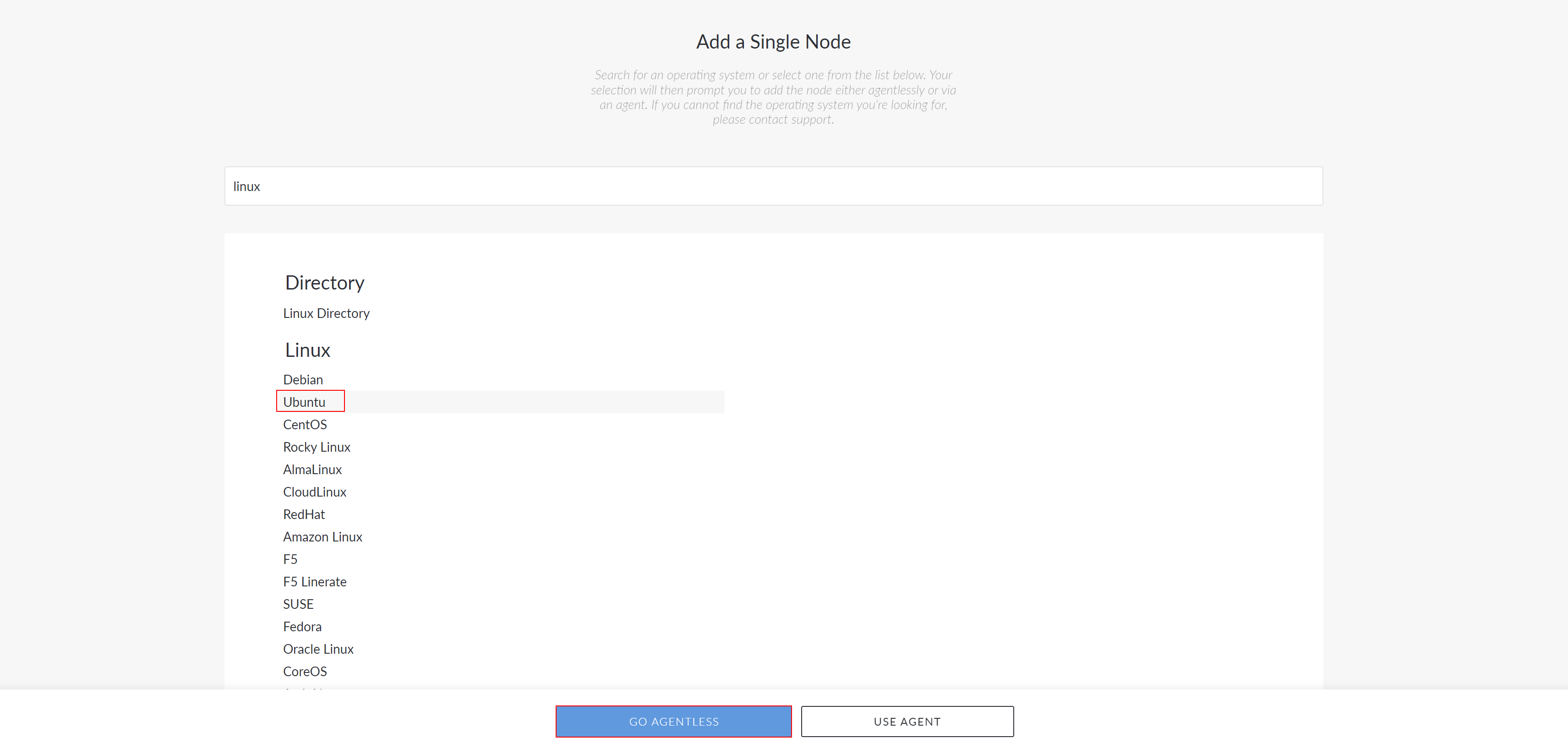
Type the node name in the search bar.
-
Select the node you want to add and click the Go Agentless button to proceed. The Connect Agentlessly to [Node Type] page is displayed.
-
Select the Password radio button to display the Azure Key Vault radio button. The Username field and the Azure Key Vault Items drop-down list are displayed.
-
Enter a username in the Username field. Enter the username of the account required to access the node. This must be the same account that the selected Azure Key Vault secret belongs to.
- Select a secret from the Azure Key Vault Items drop-down list. Select a secret from the list. The secrets displayed are based on values from the Key Vault(s) configured in the Azure Key Vault integration.
- Finally, click to Update or Scan Node.
By selecting a credential, you can securely authenticate Guardian's access to the node without manually entering credentials.
Note: Support for using Azure Key Vault secrets to authenticate access to Windows nodes was introduced in V3.64.0 of the Guardian Web application. For more information, see Azure Key Vault Credentials