Enable LDAP Server Authentication
By default, Cloudhouse Guardian (Guardian) uses a local authentication mechanism for signing in to your Guardian account that is based on a username/email and password combination. However, it is possible to manually replace the default mechanism with Lightweight Directory Access Protocol (LDAP) server authentication. This method of authentication is especially useful if your users and groups are stored in a corporate directory.
To begin the process of enabling LDAP authentication, you must first configure your LDAP Settings to enable outbound connectivity to the LDAP server. Once the correct settings have been applied, a Guardian Engineer is then required to enable LDAP authentication, contact Guardian Support to assist you with that. For more information, see below.
LDAP Settings
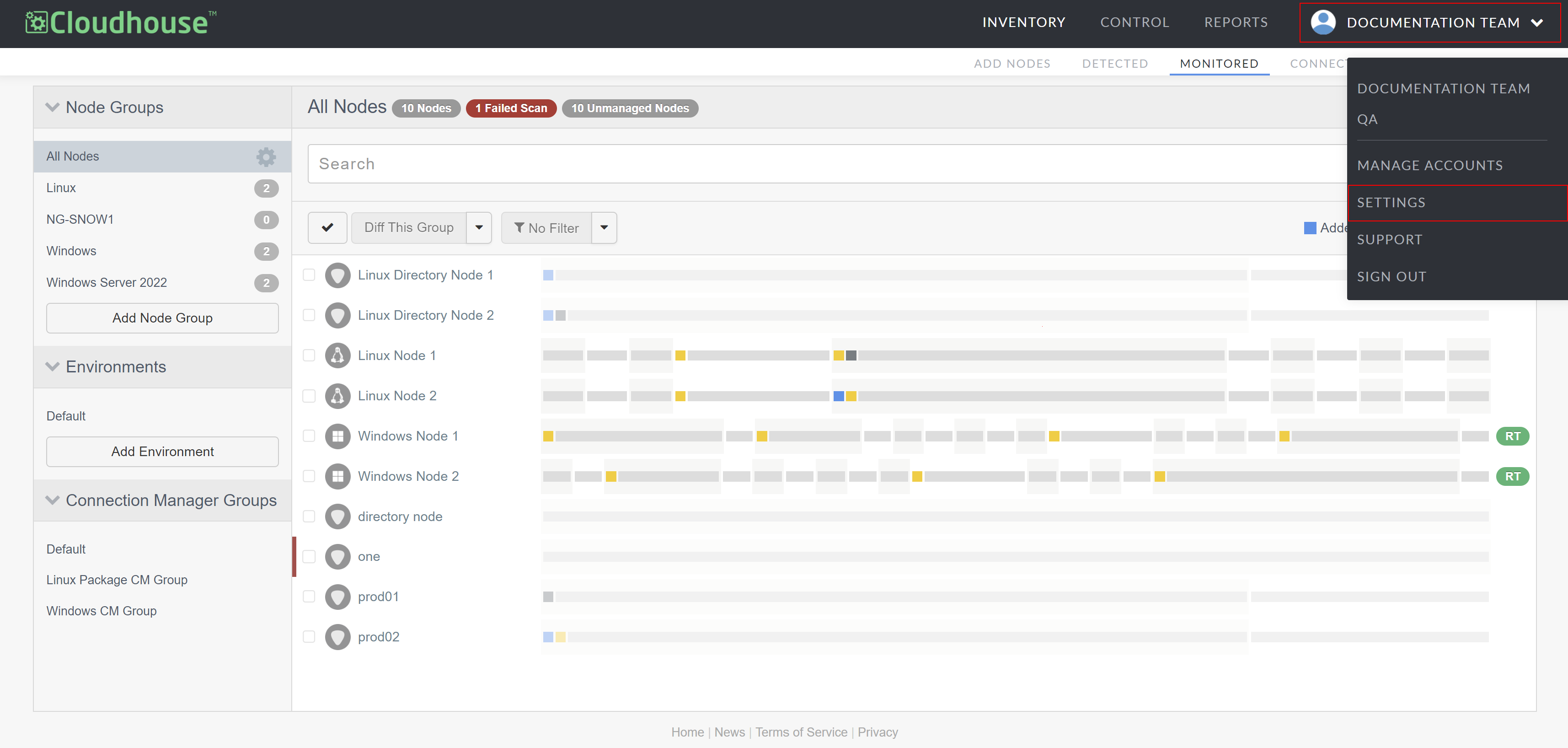
To configure your LDAP Settings, access the Settings page. Click the Account drop-down menu on the right-hand side of the Guardian toolbar, then select Settings.
Note: The name of the drop-down corresponds with the name of the organization you are currently in, see Account Menu for more information.
The Guardian Appliance Settings page is displayed. Here, you can access and configure your General settings, SMTP Settings, and LDAP Settings. For more information on the configurable elements within the Guardian Appliance Settings page, see Guardian Settings (Accounts > Settings).
Note: If the LDAP Settings are not automatically displayed, add '?show_ldap' to the URL of your Guardian instance (for example, 'https://guardian-test.cloudhouse.com/settings/?show_ldap') and click Enter.
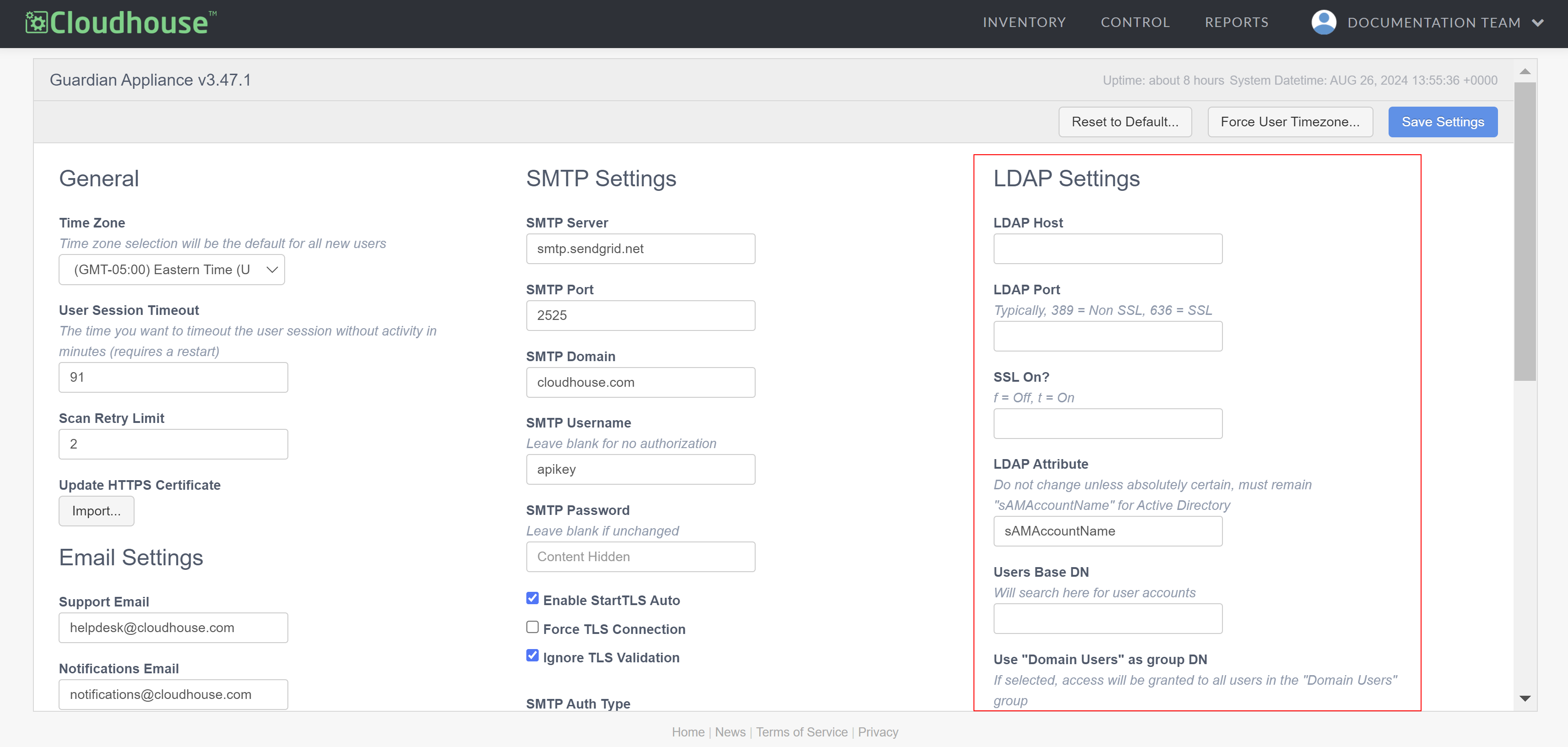
The following LDAP Settings must be configured correctly to connect to your LDAP directory server. Once each value has been set correctly, click Save Settings.
| Setting | Description |
|---|---|
| LDAP Host | The host name of your directory server. For example, 'ldap.example.com'. |
| LDAP Port | The port to use for connecting to your directory server. If the connection to your directory server is a Secure Sockets Layer(SSL) connection, that is, a standard security technology that establishes an encrypted link between a web server and a browser, this is typically port 636. If the connection to your directory server is not an SSL connection, this is typically port 389. |
| SSL On? | Flag determining whether to use SSL for the connection. To enable this protocol, enter 't' in the field. Alternatively, enter 'f' in the field to disable this feature. If SSL is not used, the default LDAP protocol is used. |
| LDAP Attribute | A unique identifier to aid with identifying the LDAP directory server. By default, this field is set to 'sAMAccountName'. Cloudhouse advises all users to keep the value in this field the same. However, for Microsoft Active Directory servers, this is a requirement. |
| Users Base DN | The root Distinguished Name (DN) that is used when running queries against the directory server. The lowest level Organizational Unit (OU) containing all user records. For example, OU=users,DC=mycorp,DC=com |
| Use "Domain Users" as group DN checkbox | Checkbox determining how to grant access to users. By default, the Users Group DN dictates who can access the platform. If the checkbox is selected, all 'Domain Users' will be granted access to the platform. If the checkbox is not selected, a Users Group DN must be specified in the field below as only users in the Users Group DN will be granted access to the platform. |
| Users Group DN | The Users Group DN controls access to the platform. Enter the Common Name (CN) of the user group you want to grant access to the Guardian platform in this field. |
| Whitelist Node Groups for DN Group Members | The value provided in this field can be used to grant node group access to all members of a DN group. For example, 'CN=group-name: example-node-group1, example-node-group2, example-node-group3;'. |
| Bind Account DN | The DN of a user that can query LDAP. The Guardian appliance binds to this account when connecting to the directory server. For example, 'CN=service_user,OU=users,DC=mycorp,DC=com ,CN=users,DC=ad,DC=example,DC=com'. |
| Bind Account Password | The password of the Bind Account DN user that the Guardian appliance uses when connecting to the directory server. |
| LDAP Login Require Invite? checkbox | Checkbox determining whether LDAP Authenticated users require an invitation to log in. If selected, LDAP Authenticated users require an invitation to log in. If not selected, LDAP Authenticated users can log in without an invitation. Note: This feature is only available for appliances with a single organization. If selected for an appliance that has multiple organizations, the flag will be ignored and default to the original setting. |
LDAP Bind Test
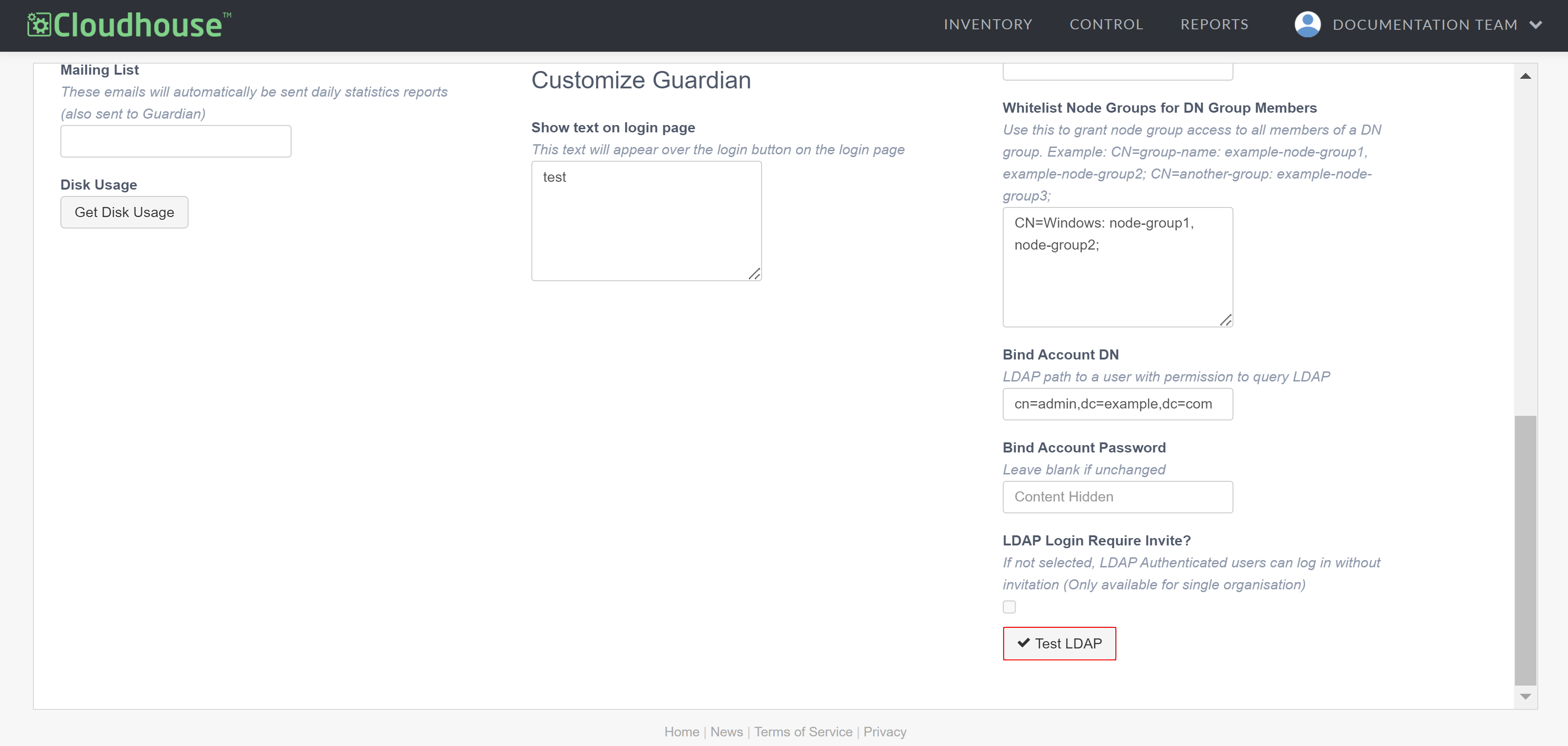
If each of the fields in the LDAP Settings form has been set correctly, you can test the connection to the LDAP server by clicking the Test LDAP button. The button is displayed at the bottom of the LDAP Settings form.
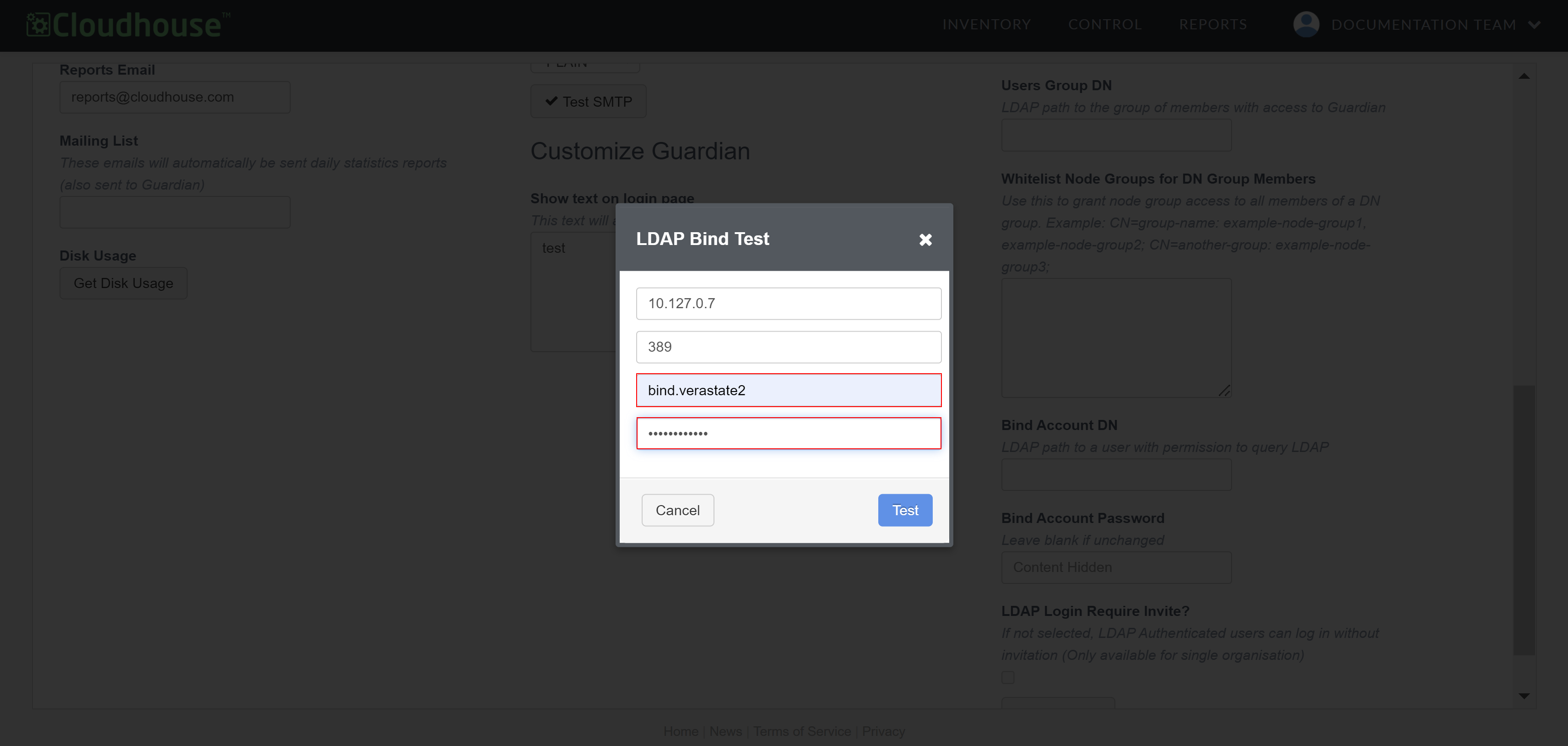
The LDAP Bind Test dialog is displayed with the LDAP Host and LDAP Port values entered in the LDAP Settings.
To test the connection to your LDAP server directory, complete the following:
- Enter the LDAP Bind Account.
- Re-enter the LDAP Bind Password.
- Once you have entered the correct values, click Test.
If successful, a confirmation message is displayed, indicating that the server is recognized and authentication using the provided credentials is operating correctly for accessing directory services. If unsuccessful, an error message is displayed. Use the information displayed in the error message to troubleshoot the issue.