Sign In via Two-Factor Authentication
Cloudhouse-Hosted Only
There are multiple ways to sign in to your Cloudhouse Guardian (Guardian) account. By default, Guardian uses a local authentication mechanism for signing in to your Guardian account that is based on an email and password combination. However, with Two-Factor Authentication (2FA), an additional step is required to sign in to your account. For more information on how to enable 2FA, see Enable Two-Factor Authentication.
Two-Factor Authentication
Guardian supports Two-Factor Authentication (2FA) via Authy. With 2FA enabled, you are required to authenticate your account via an application token each time you sign in. This process assumes you have an account already set up with Authy, the provider needed to authenticate your account.
Sign In
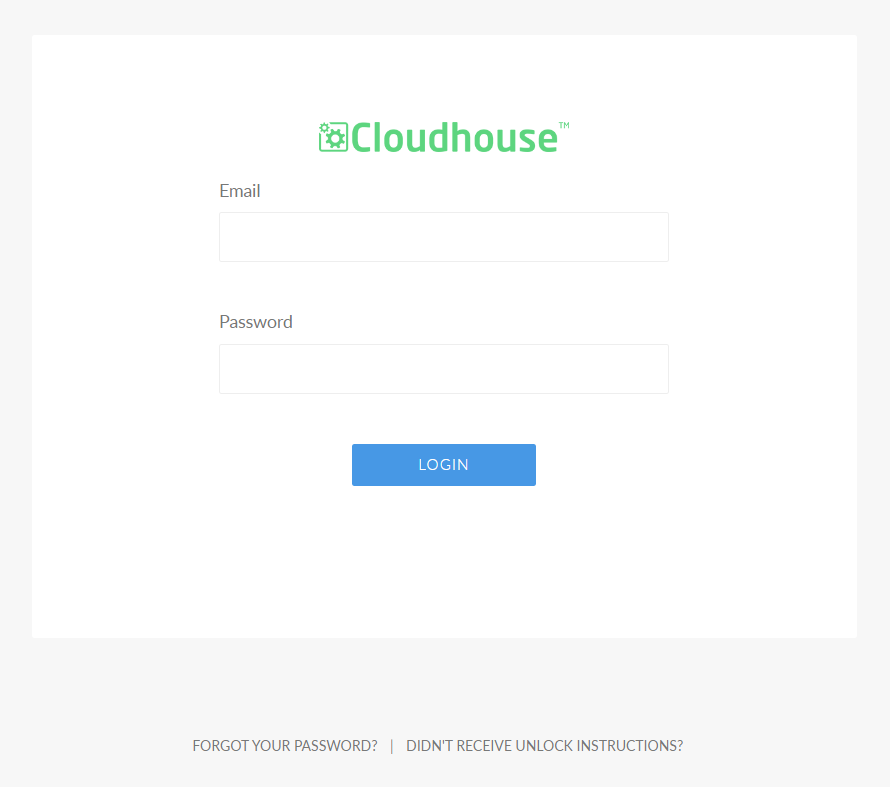
2FA via Authy is only available for Cloudhouse-hosted instances of Guardian. As such, the Sign In page can be accessed via your browser. The following fields are displayed on the Sign in page:
| Field | Description |
|---|---|
| Username | - The email address associated with the account. |
| Password | The password associated with the account. |
Once you have entered your account information, click Sign In to proceed.
Note: For on-premise deployments, additional work is required to connect to your authentication provider. For more information on how to enable 2FA for on-premise deployments of Guardian, contact the Cloudhouse Help Desk.
Authenticate
After clicking Sign In, the Authenticate dialog is displayed. Here, you are prompted to enter a token in the field provided. The token can be retrieved from the Authy app or via SMS, as described below.
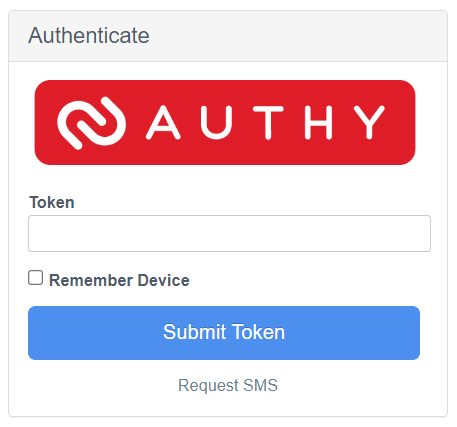
Here, the following options are displayed:
| Option | Description |
|---|---|
| Token field | - The token required to authenticate your account. For more information, see Token via Authy App. |
| Request SMS hyperlink | Link to request a token via SMS. For more information, see Token via SMS. |
| Remember Device checkbox | Select to store your device's details. This will stop 2FA as a requirement when signing in from your current device. |
Once you have entered a token in the field provided, click to Submit Token. If the token matches the value provided by Authy, and is submitted before the token refreshes, you are successfully signed into your account. For information on how to source the required token, see below.
Token via Authy App
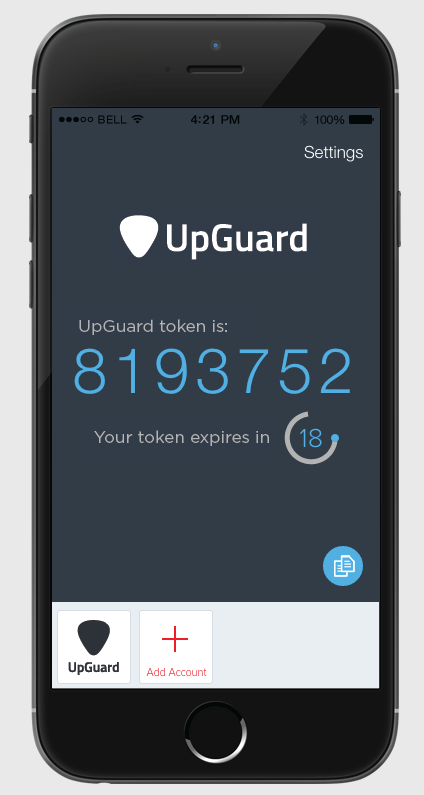
The default method for 2FA is via the Authy app. To source the token required to authenticate your account, open the Authy app and locate your Cloudhouse token (called 'UpGuard token). The token refreshes every 20 seconds, so make sure to enter the value in the Token field and click Submit Token before it is refreshed.
Token via SMS
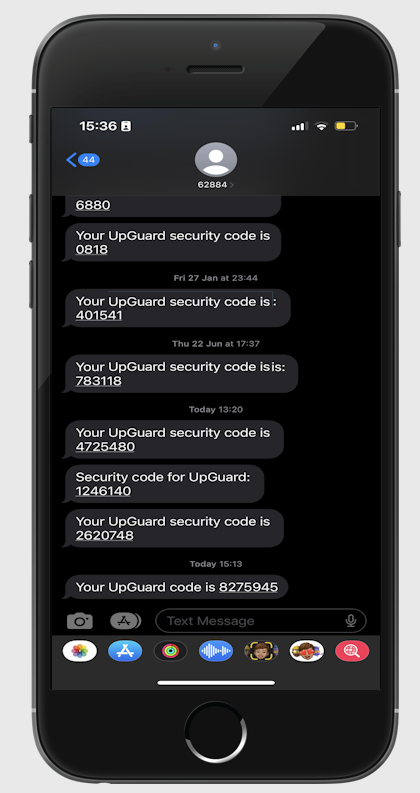
If you do not want to use the Authy app for 2FA, you can Request SMS instead. This will send a text containing the Cloudhouse token (called 'UpGuard security code') to the phone number provided. The token refreshes every 20 seconds, so make sure to enter the value in the Token field and click Submit Token before it is refreshed.