Account Menu
The Account drop-down menu in Cloudhouse Guardian (Guardian) offers a central location to access your account details, switch between organization accounts, and manage Guardian settings. To access the Account drop-down menu, click the name of your organization in the top right corner of Guardian.
Tip: The Account drop-down menu was updated in V3.55.0 of Guardian. To access the functionality described below, upgrade to the May 2025 Monthly Release.
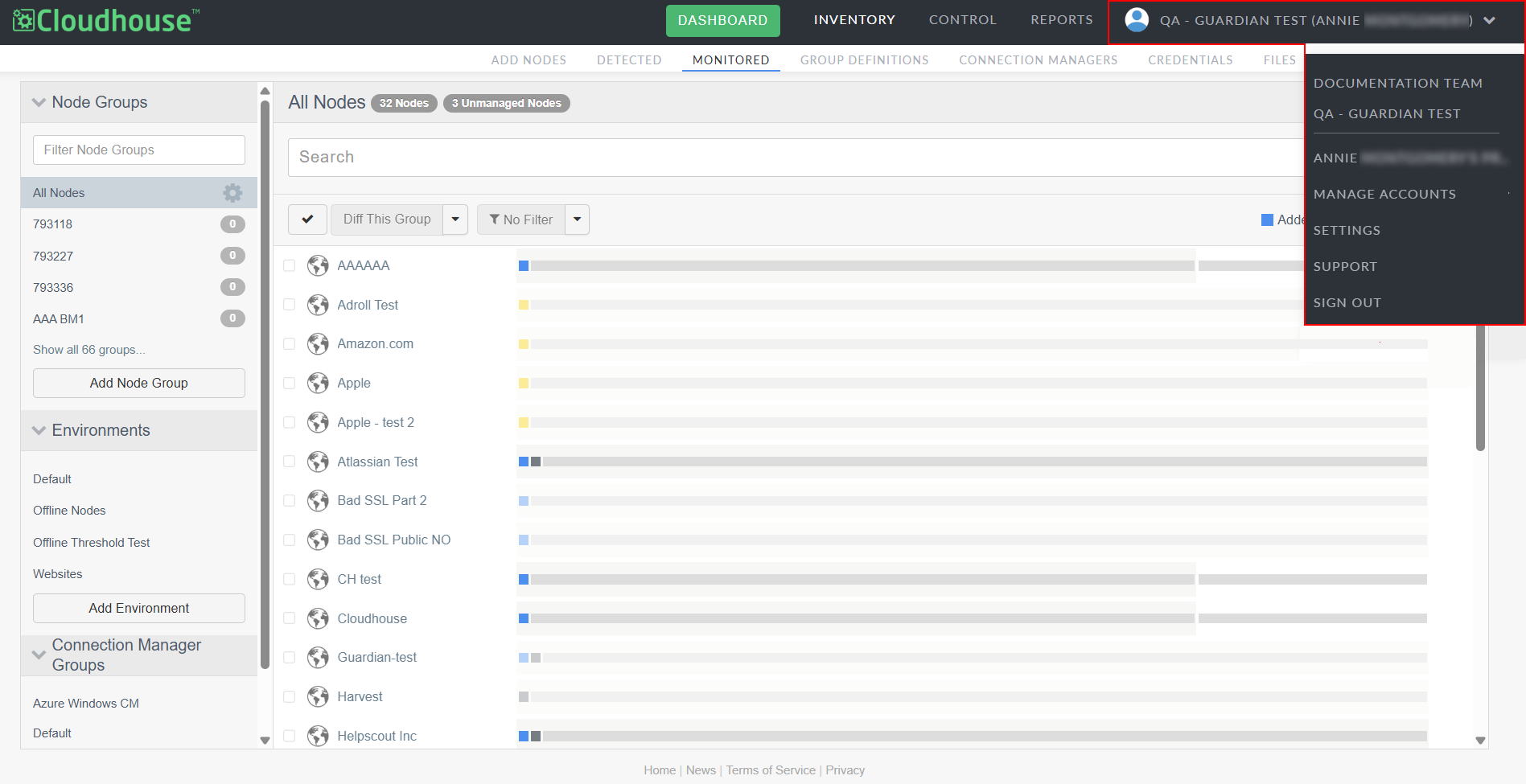
The Account drop-down menu includes the following options:
| Option | Description |
|---|---|
| Organizations | The organizations you have access to within Guardian. To switch between organizations, select an organization from the drop-down menu. The name of the organization you're currently in is shown in the top right corner of Guardian. For more information, see Organization Accounts. |
| [User Name]'s Profile | Takes you to profile of the currently signed in user account. Here, you can access and edit user details, configure environment reports, and view the account's live activity feed. |
| Manage Accounts | Takes you to the Accounts page where you can manage your Guardian organizations, including user access and permissions. For more information, see Manage Accounts. |
| Settings | Takes you to the Settings page for your overall Guardian instance. Here, you can adjust top-level settings that apply to all organizations configured in your Guardian instance. For more information, see Guardian Settings. Note: Only Guardian administrators have access to the Settings page. Depending on your role within Guardian, you may not see this option listed. For more information, see Users. |
| Support | Takes you to the Guardian Help documentation website. |
| Sign Out | Click to sign out of the current user account. |